How to Play Hytale Now: Launcher Guide, System Requirements & Pricing (2026)
Last Updated: January 25, 2026
If you have opened Steam, searched for “Hytale,” and come up empty-handed, you are not alone.
Despite being the most talked-about game of January 2026, Hytale has launched without a Steam or Epic Games Store page. Following the dramatic “indie revival” of the project earlier this month—where the original founders repurchased the game from Riot Games—the distribution strategy has shifted entirely to a direct-to-consumer model.
This guide is the definitive resource for navigating the new Hytale ecosystem. Below, we break down exactly how to buy and install the game via the custom launcher, the difference between the “Standard” and “Supporter” editions, and—most importantly—the real system requirements needed to run this unpolished Early Access build.
Part 1: Why Isn’t Hytale on Steam?
Before we get to the installation, it is vital to understand why the process is different. When Hypixel Studios re-acquired the rights to Hytale in late 2025, they made a specific promise: to get the game into players’ hands immediately to fund development.
Launching on Steam would have required a 30% revenue cut and a rigorous certification process that the current “Legacy Engine” build (a reverted version of the game from ~2021) likely would not have passed.
The Result: Hytale uses a proprietary Hytale Launcher (similar to the Minecraft Launcher). This allows the developers to push hotfixes—like the recent Update 1 and Update 2—rapidly without waiting for platform approval.
Warning: Do not download “Hytale” from third-party sites or torrents. Scammers are currently flooding search results with fake launchers that contain malware. Only download from the official
hytale.comdomain.
Part 2: How to Buy and Download Hytale
Since there is no “Add to Cart” button on a store app, you must follow this manual process.
Step 1: Create a Hytale ID
You cannot use your old Riot Account or Microsoft Account. You must create a new Hytale ID.
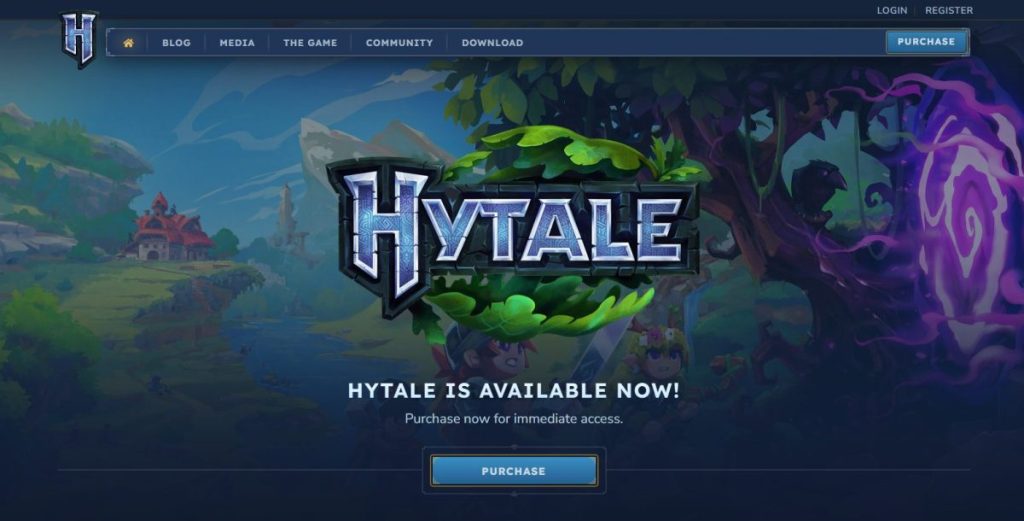
- Go to
hytale.com/signup. - Register with an email address (Gmail and Outlook are currently receiving verification codes fastest; Yahoo users are reporting delays).
- Crucial: Secure your “User Handle” immediately. This is unique (e.g.,
@Steve) and separate from your display name.
Step 2: Choose Your Edition
Once logged in, you will be presented with two purchase options. The content in both is identical; the difference is purely to support the studio’s independence.
| Feature | Standard Edition | Supporter Edition |
| Price | $23.79 USD | $41.64 USD |
| Game Access | Full Early Access | Full Early Access |
| Cosmetics | None | Gold “Supporter” Nameplate |
| In-Game Currency | 0 Coins | 1,000 Coins (Store not live yet) |
| Badge | None | “Savior” Badge on Forum Profile |
Our Recommendation: Unless you are a die-hard super-fan who wants to donate to the dev team, stick to the Standard Edition. The in-game store for cosmetics is not even active yet, so the extra money is currently just a donation.
Step 3: Download the Launcher
After payment, a “Download for Windows” button will appear in your account dashboard.
- File Size: The installer is small (~150MB).
- Game Size: The initial download is roughly 8 GB, but the install folder will expand to 20 GB+ as the game generates world caches.
Part 3: Official vs. Real-World System Requirements
The official specs listed on the website are modest, but they don’t tell the whole story. Because the team reverted to an older engine (Java/C# hybrid) rather than the optimized C++ engine Riot was building, the game is currently CPU and RAM heavy.
Here is the breakdown of what you actually need to run the game smoothly at 1080p.
Minimum Specs (30 FPS / Low Settings)
- OS: Windows 10/11 (64-bit)
- CPU: Intel Core i5-7500 / AMD Ryzen 3 1200
- RAM: 8 GB (This is a hard floor; 6GB systems will crash)
- GPU: NVIDIA GTX 960 / AMD Radeon R9 280
- Storage: 15 GB available space
Recommended Specs (60 FPS / High Settings)
- OS: Windows 11
- CPU: Intel Core i5-10400 / AMD Ryzen 5 3600 (High single-core speed matters most)
- RAM: 16 GB DDR4
- GPU: NVIDIA RTX 2060 / AMD Radeon RX 5600 XT
- Storage: NVMe SSD (Crucial)
The “Hidden” Requirement: An SSD
If you take one thing from this guide: Do not install Hytale on an HDD.
The “Orbis” world generation engine streams chunk data constantly. On a mechanical hard drive, you will experience “micro-stutters” every time you walk across a zone boundary. An SSD eliminates this almost entirely.
Part 4: Performance Optimization Guide
The number one complaint in the first week of Early Access has been performance. Even on high-end rigs (RTX 40-series), players are seeing frame drops. This is due to the unoptimized “Legacy” codebase.
Here are three tweaks to instantly boost your FPS:
1. The “View Distance” Trap
By default, Hytale might auto-detect a view distance of 32 Chunks. This is too high for the current build.
- Fix: Lower View Distance to 12-16 Chunks.
- Why: The engine currently calculates entity AI (animals, monsters) in all loaded chunks. reducing this significantly frees up your CPU.
2. Shadow Resolution
The lighting engine in Hytale is surprisingly advanced, featuring colored point lights and dynamic shadows.
- Fix: Set Shadows to “Medium” or “Low”.
- Why: “High” shadows render shadows for grass blades and leaves, which tanks performance in dense biomes like the Emerald Grove.
3. RAM Allocation (Advanced)
Since the game runs on a Java-based framework, it defaults to allocating 4GB of RAM. If you have 16GB+ of system RAM, you can safely increase this.
- How: Open Launcher Settings $\rightarrow$ Java Arguments $\rightarrow$ Change
-Xmx4Gto-Xmx8G. - Result: This prevents the game from “garbage collecting” too often, which causes stutter spikes.
Part 5: Hytale on Steam Deck & Linux
Hytale is officially Windows Only right now. However, the Linux community has already found workarounds, though they require some “tinkering.”
Is it playable on Steam Deck?
Yes, but with caveats.
- Installation: You cannot just run the .exe. You must use “Add Non-Steam Game” and force compatibility with Proton Experimental.
- Controls: There is no native controller support yet. You must map your Steam Deck buttons to Keyboard/Mouse keys (WASD) using Steam Input.
- Text Size: The UI is not scaled for handheld screens; inventory text is currently tiny and hard to read.
- No Cloud Saves: Since there is no Steam Cloud, your worlds are stuck on the Deck unless you manually transfer files.
Verdict: If you are comfortable with Linux tinkering, it runs at a solid 45-60 FPS on Medium settings on the Deck. If you want a “pick up and play” experience, wait for official support.
Part 6: Troubleshooting Common Launch Bugs
As of the January 24th Patch (Update 2), these are the most common issues and their fixes:
Issue: “Authentication Failed” Loop
- Cause: The launcher servers are overwhelmed during peak hours (6 PM – 10 PM EST).
- Fix: Close the launcher completely (check Task Manager) and restart it. Do not just click “Retry.”
Issue: Pink Textures on Models
- Cause: Corrupted asset download.
- Fix: In the Launcher, click the “Gear” icon next to the Play button and select “Repair Installation.” This will re-download the missing texture atlases (approx. 200MB).
Issue: Multiplayer “Rubber-banding”
- Cause: Default UDP port blockage.
- Fix: Ensure Port 5520 (UDP) is open on your router. Unlike Minecraft (which uses TCP), Hytale relies heavily on UDP for movement synchronization.
Summary: Is It Safe to Buy Now?
The release of Hytale into Early Access is a messy, beautiful, and nostalgic event. By bypassing Steam, the developers have asked for a level of trust that is rare in 2026.
If you have a decent PC (Update your drivers!) and are willing to forgive the lack of polish, the experience is incredibly rewarding. The modding tools are already active, and custom servers are popping up daily. However, if you are strictly a console gamer or rely on a low-end laptop, we strongly recommend waiting for the “Beta” milestone expected later this year.
