What can I play on my Macbook Neo?

It is genuinely exciting that we have reached a point where an entry-level, $599 Apple laptop can handle actual PC gaming. The newly released 2026 MacBook Neo is a fantastic machine for everyday tasks, and thanks to the surprisingly robust A18 Pro chip (the exact same silicon powering the iPhone 16 Pro), it can comfortably double as a capable indie and light-AAA gaming machine.
However, let’s ground our expectations in reality: this is a fanless, budget-friendly laptop equipped with 8GB of unified memory. It is not a dedicated gaming rig. But if you are willing to make some compromises on resolution and graphics settings, you will be shocked at what this vibrant little machine can pull off.
The 8GB Reality Check
Before we dive into the games, it is crucial to understand the MacBook Neo’s primary constraint: 8GB of RAM.
- Native Mac Games: Titles specifically optimized for Apple Silicon (Metal) run incredibly well because they efficiently utilize Apple’s unified memory architecture. Apple has actively pushed developers to bring native versions of heavy hitters to macOS, and the results show.
- Translation Layers: Running Windows games requires translation software like CrossOver or Apple’s Rosetta 2. This process eats up memory. Heavy Windows games can easily max out your 8GB, leading to stuttering (for example, Counter-Strike 2 barely hits 5 FPS through CrossOver and is effectively unplayable).
- Storage Limits: The base model has a 256GB SSD. With massive modern games taking up 100GB+ of space, you will need to manage your storage carefully or invest in an external drive.
Note: Competitive multiplayer games that rely on kernel-level anti-cheat software designed for Windows (like Valorant or League of Legends) will not run on macOS.
10 Popular Games You Can Play on the MacBook Neo
Here is a curated list of 10 popular games tested on the MacBook Neo, complete with their average Frames Per Second (FPS), required settings, and a direct comparison to the raw power of the current M5 MacBook Pro.

The Macbook Neo is great for Silksong. It is one of the best games for completionists and achievement hunters. We’ve played it alongside the Silksong 100% Completion Checklist and other tools for the best experience.
| Game | MacBook Neo FPS | Resolution / Settings (Neo) | MacBook Pro (M5) FPS | Performance Notes |
| Hollow Knight: Silksong | 60 FPS (Locked) | 2816 x 1762 / High | 120+ FPS | Buttery smooth at native resolution. |
| Hades 2 | 60 FPS | 2816 x 1762 / Native | 120+ FPS | Flawless performance for this fast-paced roguelike. |
| Sneaky Sasquatch | 60 FPS (Locked) | 2816 x 1762 / Arcade | 120+ FPS | An Apple Arcade favorite that runs perfectly silently. |
| Oceanhorn 3 | 45–60 FPS | 1408 x 881 / Default | 120+ FPS | Drops slightly in open outdoor areas but stays incredibly smooth indoors. |
| Resident Evil 2 Remake | 60 FPS | 1080p / Medium-Low | 120+ FPS (4K) | A massive win for Mac optimization; native metal support makes it run beautifully. |
| Control | ~50 FPS | 1080p / Low | 60+ FPS (1440p) | Very playable; a great showing for a highly demanding title running natively. |
| Resident Evil 4 Remake | 40–45 FPS | 1080p / Low (MetalFX) | 60–120 FPS (1440p) | Uses Apple’s MetalFX upscaling to maintain a very playable frame rate. |
| RoboCop: Rogue City | ~45 FPS | 720p / Upscaled | 60+ FPS (1080p) | Deeply impressive that a visually heavy game runs on an iPhone chip. |
| Shadow of the Tomb Raider | ~42 FPS | 720p / Upscaled | 60+ FPS (1440p) | Playable and stable via translation, though you sacrifice significant visual fidelity. |
| Cyberpunk 2077 | 30–45 FPS | 720p / Low (MetalFX) | 60–90+ FPS (1600p + RT) | A technical miracle. The native Mac port holds up, but expect frame drops in crowded city areas. |
MacBook Neo vs. MacBook Air (M5): Gaming Performance
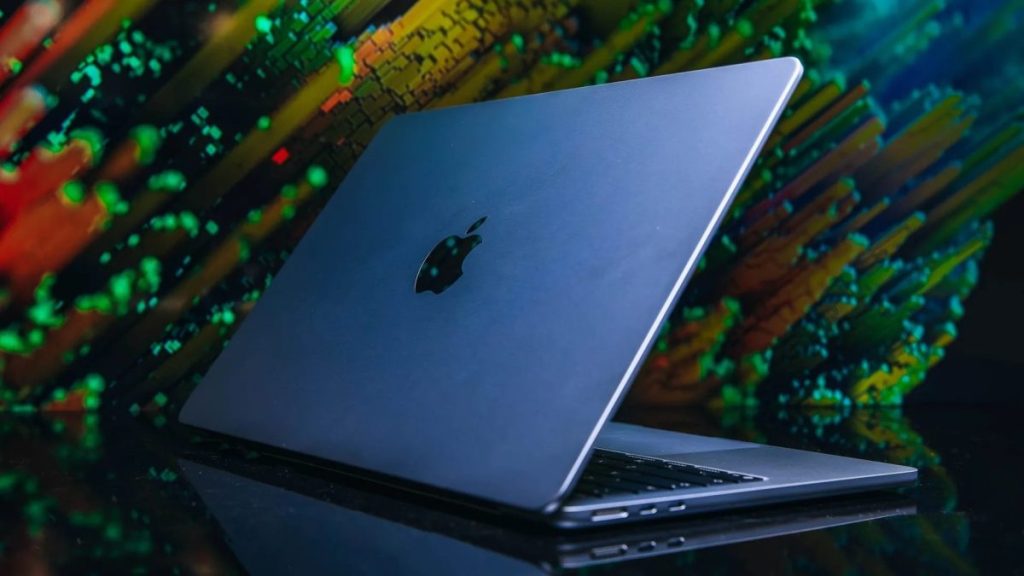
If you are torn between the $599 MacBook Neo and the MacBook Air (M5), the difference in gaming headroom is significant, primarily due to the internal architecture and base specifications.
- Memory and Storage: The MacBook Air (M5) now starts with 16GB of unified memory and a 512GB SSD, compared to the Neo’s 8GB and 256GB. This alone eliminates the swapping and stuttering issues found in heavy titles on the Neo.
- Processor: The Neo utilizes the A18 Pro (6-core CPU, 5-core GPU)—a highly efficient flagship phone chip. The Air utilizes the M5 (10-core CPU, 10-core GPU), delivering dramatically more graphical compute power.
- Real-World Impact: Games that require you to drop the Neo down to 720p on Low settings (like Cyberpunk 2077) can comfortably run at 1080p or 1440p on Medium/High settings on the M5 Air.
Ultimately, the Neo’s value proposition is unmatched if your primary goal is taking notes, browsing the web, and occasionally unwinding with Hades 2 or Resident Evil. However, if you plan to play modern AAA releases regularly, the jump to the M5 Air or M5 Pro is highly recommended.
MacBook Neo vs. MacBook Pro (M1 Pro): The Generational Clash
It is fascinating to compare a brand-new $599 entry-level laptop against a premium powerhouse from late 2021. If you are deciding whether to buy the new Neo or pick up a used 14-inch M1 Pro for roughly a similar price, here is how they stack up for gaming.
| Feature | MacBook Neo (A18 Pro) | MacBook Pro (M1 Pro) |
| Base Memory | 8GB Unified Memory | 16GB Unified Memory |
| CPU | 6-core (2 performance, 4 efficiency) | 8-core or 10-core (6/8 performance, 2 efficiency) |
| GPU | 5-core | 14-core or 16-core |
| Cooling | Fanless (Passive) | Active (Fans) |
| Gaming Performance | Great for indies; struggles with heavy AAA translation. | Still highly capable for modern AAA titles at medium/high settings. |
The Breakdown
- CPU and Everyday Tasks: Believe it or not, the A18 Pro in the MacBook Neo actually beats the M1 Pro in single-core CPU performance. For everyday web browsing, opening applications, and basic productivity, the Neo will feel remarkably snappy, often matching or exceeding the older Pro model.
- Gaming and Graphics: This is where the M1 Pro completely pulls ahead. The M1 Pro has up to three times the GPU cores, double the base RAM (16GB), and significantly higher memory bandwidth (200GB/s compared to the Neo’s 60GB/s).
- Cooling: The Neo is fanless, meaning it will eventually throttle its performance during long gaming sessions to keep temperatures down. The M1 Pro features active cooling, allowing it to sustain peak gaming performance for hours without breaking a sweat.
The Takeaway
If gaming is a primary focus for you, a used or refurbished M1 Pro will absolutely run circles around the MacBook Neo. The 16GB of RAM and beefier GPU are essential for running demanding titles through translation layers like CrossOver. However, if you prioritize ultra-portability, modern features (like Apple Intelligence), vibrant color options, and a fresh battery for everyday tasks—with just light gaming on the side—the Neo remains a fantastic choice.
How to Play Windows Games: Setting Up Rosetta 2 and CrossOver
Because the MacBook Neo uses Apple Silicon (ARM architecture), it cannot natively run games built for Intel (x86) processors or the Windows operating system. However, thanks to Apple and third-party developers, you have two powerful tools to bridge the gap: Rosetta 2 and CrossOver.
1. Enabling Rosetta 2
Rosetta 2 translates older Mac games designed for Intel chips so they can run on your A18 Pro. It works quietly in the background, but you need to install it first.
- The Easy Way: Simply try to open an older Mac app or game (like standard Minecraft or an older Steam title). A prompt will automatically appear asking if you want to install Rosetta. Click “Install,” and you are done.
- The Manual Way: Open the Terminal app (found in Applications > Utilities) and paste this command:
softwareupdate --install-rosetta --agree-to-licenseHit Enter, and the installation will complete in seconds.
2. Setting Up CrossOver for Windows Games
For games that are completely exclusive to Windows, you will need CrossOver by CodeWeavers. It translates Windows commands into Mac commands in real-time. It is a paid app, but it offers a free trial so you can test your favorite games first.
- Step 1: Download and Install: Head to the CodeWeavers website, download the CrossOver app, and move it to your Applications folder.
- Step 2: Create a “Bottle”: CrossOver uses “Bottles” to simulate different Windows environments. Open CrossOver and search for “Steam” in the install menu. CrossOver will automatically create a Windows 10/11 64-bit bottle and install the Windows version of Steam inside it.
- Step 3: Enable D3DMetal: Once your Steam bottle is created, look at the right-hand sidebar in CrossOver. Make sure D3DMetal (Apple’s game porting toolkit technology) is toggled ON. This is crucial for getting modern games like Cyberpunk 2077 to run smoothly. If a game is older or glitchy, try toggling it off and turning DXVK on instead.
- Step 4: Install and Play: Open Steam from within CrossOver, log into your account, download your Windows games, and hit play!
Pro-Tip for the Neo: Because CrossOver translation requires extra memory overhead, close absolutely every other application (browsers, music players, chat apps) before launching a heavy Windows game. You need every megabyte of that 8GB of RAM dedicated to the game.
Sources & Further Reading
For a deeper dive into the specific benchmarks and testing methodologies behind these numbers, check out the original hardware reviews:
